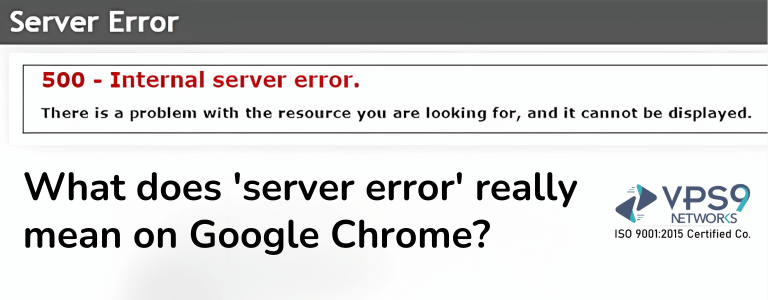
Getting a ‘server error‘ while using Google Chrome is really annoying, more so when you want to get some crucial information or you are in the middle of something important online. The error means that there is something wrong with the server hosting the web page that you’re trying to reach.
In this blog, we shall be going through what this error in Google Chrome known as ‘server error’-actually is, the common causes, and how one can possibly go about solving such issues.
What is a ‘server error’?
A ‘server error’ happens when Google Chrome does not connect a connection to the server of the website that you are trying to use. These kinds of errors normally lead to messages that say, “500 internal server error,” “502 bad gateway,” “503 services unavailable,” or “504 gateway timeout” This error means the server encountered an unexpected condition, which prevented it from fulfilling the request by your browser.
Common server errors

- 500 Internal server error: this generic error message simply says that this is an unexpected condition that prevents the server from fulfilling the request. This can be due to a buggy script on the server, a corrupting resource, or a configuration problem.
- 502 Bad Gateway: The server, while acting as a gateway or proxy, received an invalid response from an upstream server. Essentially, this can be due to network issues, server configuration problems, or some malfunction of the upstream server itself.
- 503 Service Unavailable: The server is currently unable to handle the request because it is down for maintenance or overloaded. That means this problem is only temporary and has to sort itself out.
- 504 Gateway Timeout: An error that might appear in case a server acts as a gateway or proxy, and it times out while waiting for a response from an upstream server. Because of this, the mistake could either be because of network congestion or failure by the upstream servers.
Common causes of server errors

- High Volume of Traffic: Heavy volume causes overloading on the server, and these are some of the basic errors. Many people have accessed the website simultaneously to develop load on the server, which may not respond to all the requests.
- Server Maintenance: It may go down because of planned or unplanned maintenance. During maintenance, the server goes offline or becomes less active during the time the maintenance is conducted, developing errors for those trying to reach it.
- Software Bugs: Errors in code on websites or server software can cause server errors. Server downtime is caused by errors in scripts, plug-ins, and server configuration.
- Network Issues: Network problems, including but not limited to DNS, may not allow your browser to reach the server. Network congestion and routing problems round off the probable causes of server errors.
- Resource Limits: The Applications running on servers depend upon resources like CPU, memory, and storage. Whenever these resources are underutilized or overused, it results in resource outage where the server ultimately fails to respond to the requests.
Solution to server error fix

- Reload the page: Sometimes a server error is temporal. If the problem is with a temporary glitch, then refreshing the page might fix the problem.
- Check server status: Go to DownDetector or Is It Down Right Now-like websites and see if the server is up and running for everybody, not just you. That can be a good way to trace whether the problem has been disseminated to all or is kept isolated from your connection.
- Clear browser cache: Sometimes the stored data interferes with other data. Browser and cookie clearing might help resolve issues brought on by corrupted or outdated data.
- Change browser: Use another browser to open a Web page and check if the issue still occurs. This will help you confirm if this problem occurs only on Google Chrome.
- Check your internet connection: Check your internet connection and make sure it’s stable and working fine; otherwise, restart your modem or router.
- Contact the website administrator: If you have the contact information for a certain website, then you can call or even e-mail the administrator. They may need to identify exactly where the problem is occurring and can provide you with more information about when the problem will be resolved.
- Wait and try later: The reason for this kind of error message sometimes deals with heavy traffic flow or the website being down for maintenance. Try it again after some time. The problem should be fixed when the traffic is at a minimum or when the repairs are complete.
Conclusion
The ‘server errors’ in Google Chrome are quite common and can originate due to a variety of issues starting from an overdose of traffic on the server or even malicious software. Understanding the type of server errors and their causes can help in the prevention and correction of the problem. Some server errors might be temporary and self-correcting, whereas in other cases, webmasters or server maintenance teams need to take action. In general, you could minimize the effect caused by each server error and recover the connection if necessary by following the suggested solution.
What Does “Server Error” Mean?
A server error means the website’s server failed to complete a valid request. In the browser it usually appears as a generic message, “Server error” or “This site can’t be reached”, and it matches an HTTP status code starting with 5. The problem is on the website’s side, not on your device, although you can often work around it by waiting or retrying.
Common Server Error Codes
- 500 Internal Server Error: a general failure, often a code, configuration or permissions problem.
- 502 Bad Gateway: one server got a bad response from another, for example a proxy and an application server.
- 503 Service Unavailable: the server is overloaded or down for maintenance.
- 504 Gateway Timeout: an upstream server took too long to respond.
What Visitors Can Try
- Wait a minute and refresh the page.
- Try another browser or an incognito window.
- Clear cache and cookies.
- Check whether the site is down for everyone with an online status checker.
- Come back later or contact the site owner.
How Site Owners Can Fix Server Errors
- Check the error log first. On Apache and Nginx, look in the server error log, and on PHP sites in the PHP error log.
- Disable recent plugins or themes on WordPress, since a faulty plugin is a leading cause of 500 errors.
- Check .htaccess and file permissions. Use 755 for folders and 644 for files.
- Raise PHP limits such as memory_limit and max_execution_time if scripts run out of resources.
- Check resource usage. High CPU, RAM or full disk can trigger 503 and 504 errors.
- Restart services such as PHP-FPM, the web server or the database.
- Review upstream settings for proxies and load balancers that return 502 or 504.
How to Prevent Server Errors
- Keep software, plugins and themes updated, and test updates on staging.
- Use caching so spikes do not overload PHP and the database.
- Monitor uptime and set resource alerts.
- Take regular backups so you can roll back quickly.
- Choose hosting with enough dedicated resources for your traffic.
When It Is Time to Upgrade Hosting
If errors return whenever traffic rises, your plan is probably too small. Moving from shared hosting to a VPS gives you reserved CPU and RAM. See our best VPS hosting guide, or compare VPS vs dedicated server for heavier workloads.
Frequently Asked Questions
Is a server error caused by my computer?
Almost never. The failure is on the website’s server, so your best options are to wait, retry or contact the owner.
Can a server error hurt SEO?
Short outages rarely matter. Long or repeated 5xx errors can reduce crawling and rankings.
What is the difference between 500 and 503?
500 is a general failure. 503 means the server is temporarily unable to handle requests, often from overload or maintenance.