Introduction
What Is SSL and Why It’s Important
Common SSL Issues in WordPress
How to Fix Common SSL Issues in WordPress
- Login to your hosting control panel.
- Navigate to the SSL/TLS section.
- Choose your domain and install a certificate.
- Confirm that HTTPS loads on your domain.
- Change the URL to https:// or use a relative path.
- Update hardcoded URLs in theme files or plugins.
- Use plugins like Better Search Replace to update URLs in the database.
- Clear cache from your caching plugin (like WP Super Cache or W3 Total Cache).
- Clear browser cache or use incognito mode to test.
- Use the “View Page Source” option and search for http://.
- Fix Options:
- Manually update theme files.
- Use a plugin like Really Simple SSL to handle rewrites.
- Really Simple SSL: Automatically detects your SSL certificate and configures your WordPress site to run over HTTPS.
- Go to Settings → General.
- Make sure both URLs use https://.
- Login to your hosting control panel.
- Go to the SSL section.
- Select renew, or set it to auto-renew (if available).
Preventive Measures and Best Practices
SSL Issues in WordPress can cause major security and SEO problems. From mixed content warnings to redirect loops, understanding how to fix SSL issues in WordPress is essential for keeping your website secure and trustworthy.
This blog will help you better understand what are the normal SSL problems that people face, as well as how you can correct these issues appropriately on your WordPress Site.
SSL provides encryption for the data that is sent between a website and a user’s browser, meaning that important information such as users’ passwords, payment information, and other personal data cannot be intercepted by someone else. After you install SSL correctly and configure it exactly right, your website URL starts with https:// instead of http://, and you also see a padlock in the browser.
SSL also provides SEO benefits, as Google itself treats HTTPS as a ranking factor. So if you have not configured SSL the right way, it is possible that your search visibility could be negatively impacted. And, modern browsers alert users when a website is not secure, so users are left with a bad experience, which could lead them to leave your site without fully investigating.
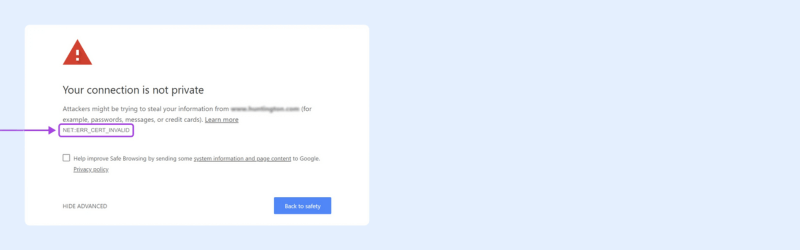
Once you have installed an SSL certificate, one of the most common challenges that WordPress users encounter is the mixed content warning. The mixed content warning occurs when the resources of your website, such as images or scripts, are still served over HTTP while the main page is being served over HTTPS. Browsers will display warnings as they consider it a security concern.
One other common error that you may run into is the “too many redirects” problem. You may experience this if your server was not configured to handle SSL correctly and is getting stuck in a loop going back and forth between running on HTTP and HTTPS thus causing your website to be not viewable, only a blank page or error message is visible.
Expired or invalid SSL Certificates are another repetitive issue. If you do not renew your SSL certificate in time, browsers will block your site stating it is unsafe.
You may also notice, even if SSL is installed correctly, that the padlock icon does not appear. Typically this relates back to the insecure elements still loading over HTTP or not installing or configuring correctly in the theme or plugins.
Another frustrating issue to deal with, is when the WordPress admin dashboard does not recognize the update of SSL and is still loading insecurely, this can cause risk if login information or administrative tasks are performed over an unsecure connection.
4.1 Installing an SSL Certificate
Before troubleshooting, make sure you have a valid SSL certificate installed. Most web hosts offer free SSL via Let’s Encrypt. Alternatively, you can purchase one from SSL providers like Comodo, GoDaddy, or Namecheap.
Steps to Install SSL:
4.2 Force HTTPS in WordPress
After installing SSL, WordPress must be configured to use HTTPS.
Steps:
Go to WordPress Dashboard → Settings → General.
Update the WordPress Address (URL) and Site Address (URL) to use https://.
You can also force HTTPS using your .htaccess file:
RewriteEngine On
RewriteCond %{HTTPS} off
RewriteRule ^(.*)$ https://%{HTTP_HOST}%{REQUEST_URI} [L,R=301]
4.3 Fixing Mixed Content Errors
Use developer tools (Right-click → Inspect → Console) to identify non-secure resources. These are often images, CSS files, or JS scripts using http://.
How to Fix:
4.4 Clearing WordPress and Browser Cache
Sometimes old cache files still serve HTTP content.
Solution:
4.5 Updating Hardcoded HTTP Links
Some themes and plugins come with hardcoded HTTP links.
How to Identify:
44.6 Use a Plugin to Handle SSL
If you’re not confident editing files or code, let plugins do the work.
Recommended Plugin:
4.7 Check .htaccess File for Redirect Loops
A misconfigured .htaccess file can cause infinite redirection.
Correct Configuration Example:
RewriteEngine On
RewriteCond %{SERVER_PORT} 80
RewriteRule ^(.*)$ https://yoursite.com/$1 [R,L]
Avoid multiple redirection rules from plugins, host, and manual edits at once.
4.8 Update WordPress Address (URL)
Incorrect settings here can break the HTTPS functionality.
Steps:
Alternatively, add this to wp-config.php:
define(‘WP_HOME’,’https://yourdomain.com’);
define(‘WP_SITEURL’,’https://yourdomain.com’);
4.9 Renew or Replace Expired SSL Certificates
Use tools like SSL Checker to verify your SSL status.
Steps to Renew:
For Let’s Encrypt users, most hosting platforms renew automatically every 90 days.
Preventing SSL issues is typically easier than resolving them. If you’re launching a website or web application, my advice is to use HTTPS from the beginning. This way, you won’t have to go back and update all your hard-coded HTTP links later on. Also, you won’t be compromising your security by operating an insecure site at all. Additionally, make sure your theme and any plugins you’re using are coded to allow HTTPS and don’t depend on hard-coded HTTP resources.
You can also use HSTS (HTTP Strict Transport Security). This is an HTTP response header that tells browsers to use HTTPS for your domain any time it is requested. HSTS also prevents downgrade attacks, and cookie hijacking.
Regularly check your SSL certificate for site and domain changes by using browser tools (inspector), Google Search Console, or other third-party services, etc. Keeping an eye on things will help you identify and address minor issues that can save lots of headaches.
Always take a backup of your site before making any major changes to the structure of URLs, plugin settings, or .htaccess file. It is very good to have peace of mind to roll back if errors or miscalculations occur during the SSL setup or configuration process.
Lastly, keep your redirection methods limited. In concrete terms, do not attempt to use manual .htaccess writing, host-level level redirects and plugin level redirects at one time. In terms of thinking and common sense, it would be best to only use one method of redirection, for many obvious reasons including consistency, trust and stability.
Conclusion
SSL is essential for securing, trusting and ranking your WordPress website with search engines. That said, often during the implementation you will run into some frustrating SSL errors. Once you have an understanding of some of these common SSL errors such as mixed content, redirect loops, and expired certificates then you can begin to troubleshoot quickly and effectively for resolution.
While using things such as the Really Simple SSL plugin, configuring your .htaccess file correctly, and loading resources over HTTPS are important factors in maintaining a secure WordPress experience, with a little parish in troubleshooting, you can help keep your site as functional and trustworthy as possible for each of your visitors.